How to Go Live on Facebook: Complete Guide for Creators (2026)
Learn how to go live on Facebook -- from the step-by-step setup to tips for making your broadcasts engaging, discoverable, and worth your audience's time.
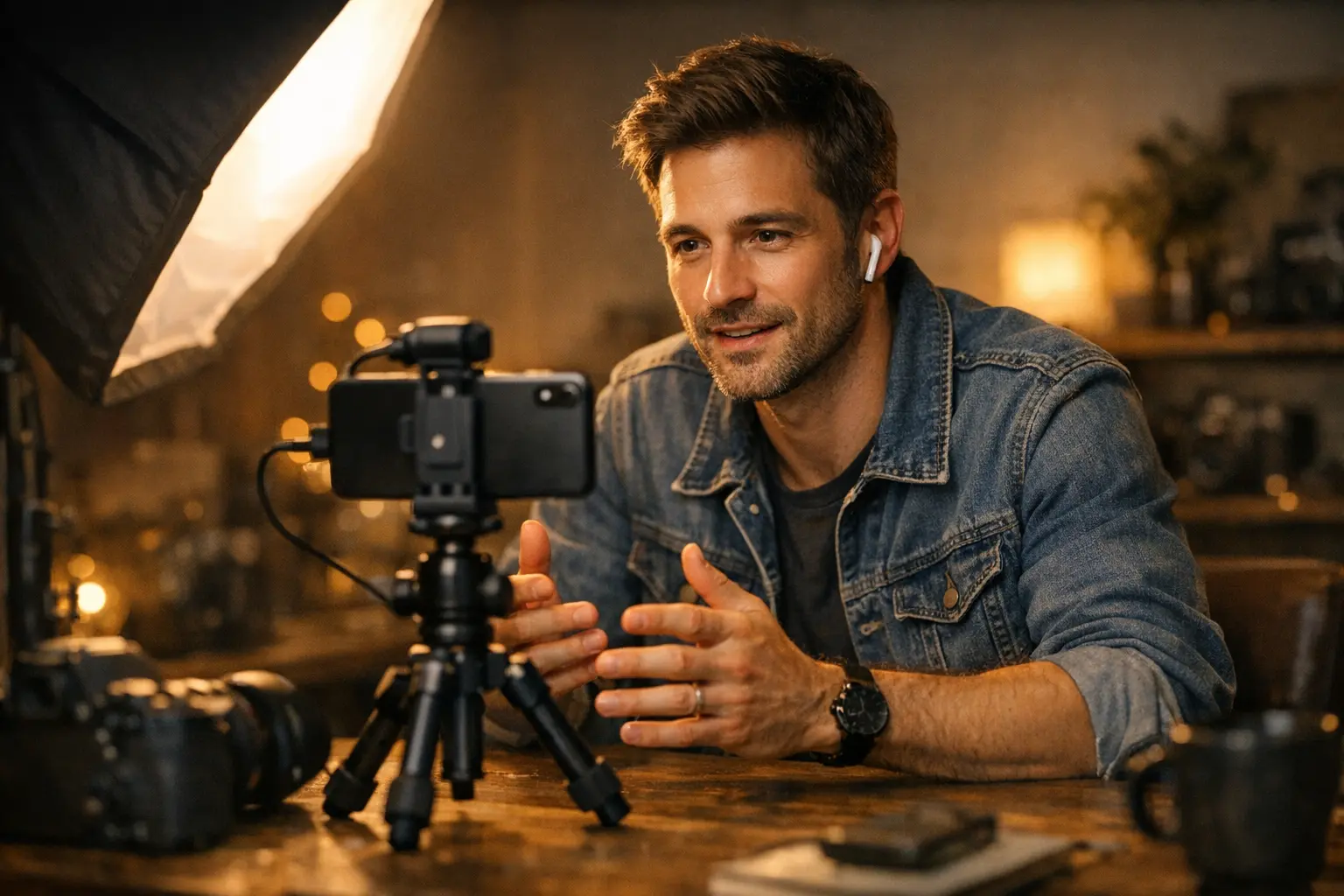
Going live on Facebook puts you in front of your audience in a way no pre-recorded content can replicate. Viewers comment in real time, you can see and respond to questions as they come in, and the unscripted nature of live video creates a level of authenticity that polished production often can’t match. It’s one of the most direct ways to build genuine rapport with the people following your page.
That said, going live without a plan often leads to rambling, technical problems, and a viewing experience that doesn’t hold attention. This guide walks you through exactly how to go live on Facebook – the technical setup, the settings that matter, and how to make your broadcasts worth watching.
Why Facebook Live Still Matters in 2026
Live video has been part of Facebook since 2016, and despite competition from YouTube Live, TikTok Live, and other streaming platforms, Facebook Live remains a significant format – particularly for creators and businesses whose audiences are already concentrated on Facebook.
A few things make Facebook Live distinct:
Immediate notification to followers. When you go live, Facebook notifies followers of your page. That notification creates a real-time audience surge that pre-recorded content rarely achieves, since followers who see the “X is live now” alert are much more likely to join immediately than followers who see a static post in the feed.
Real-time interaction. Comments, reactions, and questions come in as you broadcast, and you can respond to them on camera. This two-way dynamic makes Facebook Live feel more like a conversation than a broadcast – which builds connection in ways that one-way content doesn’t.
Replay value. After the stream ends, the video is saved and available for on-demand viewing. A live broadcast doesn’t disappear after 24 hours the way a Story does. The replay can continue generating views for weeks.
Discovery potential. Facebook sometimes surfaces live content in recommendations and the Reels feed (particularly for Reels-length live clips). While the primary reach comes from your existing followers, live video can occasionally find new audiences.
What You Need Before Going Live
Preparing before you press “Go Live” prevents the most common technical issues – and those issues tend to surface at the worst possible moments. Running through this checklist in the 30–60 minutes before your stream starts adds minimal prep time and saves far more time in lost viewers from avoidable problems.
A reliable internet connection
A stable internet connection is the most common cause of live stream failures – prioritize this above other technical preparations. A weak WiFi signal or inconsistent mobile data connection leads to buffering, dropped frames, and stream interruptions – all of which drive viewers away. If you’re on mobile, move to the strongest available WiFi network or use mobile data only if your connection is consistently fast and stable.
A charged device or power connection
Live streaming puts sustained load on your device’s processor and display, which drains battery much faster than normal use. Plan your power situation before going live – scrambling for a charger mid-broadcast interrupts your content and your viewer experience.
A Facebook Live stream drains battery quickly. Plug in if you’re streaming for more than 20–30 minutes.
A quiet or controlled audio environment
Facebook’s built-in microphone picks up background noise efficiently. Air conditioning hum, traffic, people talking nearby – all of these become distracting over the course of a stream. An external microphone (a simple lavalier/clip-on mic makes a dramatic difference) and a quieter environment significantly improve the viewer experience.
A plan for your broadcast
You don’t need a full script, but knowing the structure of your session prevents the “what do I say next?” moments that cause viewers to drop off. A simple outline – welcome and topic intro, 3–5 main points or activities, Q&A window, wrap-up – gives you enough structure to keep things moving.
A title and description ready
Facebook asks for a title and description before you go live. Having these ready in advance (rather than typing them on the spot) saves time and helps the broadcast start with a clear context for viewers who join mid-stream.
How to Go Live on Facebook: Step-by-Step
The interface for starting a Facebook Live stream varies depending on your device and broadcast setup. Mobile provides the quickest path for casual, spontaneous streams. Desktop through Live Producer is better for structured or longer broadcasts. Streaming software adds production quality for creators with more complex setups.
From the Facebook App (Mobile)
The mobile app is the fastest path to going live. The interface opens the camera directly and guides you through a brief setup before you go on air – audience selection, title, and any optional settings take less than a minute to configure.
- Open the Facebook app on your phone.
- Tap the “Create post” box on your home screen or on your page.
- Scroll through the post options and tap “Live video” (it may appear as “Go Live” depending on your device).
- Facebook opens the Live camera interface.
- Add a title for your broadcast (required) and an optional description.
- Set your audience: Public gives you the widest reach; you can also restrict to Friends or specific custom audiences.
- Optionally add a location tag, set up a fundraiser connection, or toggle on the option to share the live to a group.
- Tap “Go Live.” There’s typically a 3-second countdown before you’re on.
- Broadcast your content. Viewer comments and reactions appear on screen as you stream.
- When finished, tap “Finish” to end the stream.
- Facebook asks if you want to post the replay. Confirm, and the recorded video appears on your page.
From the Facebook Website (Desktop)
Live Producer is Facebook’s web interface for desktop broadcasts. It supports both direct webcam streaming and connections from external streaming software, making it more versatile than the mobile app for structured or technical broadcasts.
- Go to your Facebook page at facebook.com.
- Click “Create post” in the page’s composer.
- Click “Live video” from the options.
- Facebook opens Live Producer, a web interface for managing the broadcast.
- Choose your video source: “Use camera” for a direct webcam stream, or “Stream with streaming software” if you’re using OBS, Streamlabs, or another encoder.
- Add a title and description.
- Configure your stream settings.
- Click “Go Live” when ready.
Using Streaming Software (For Higher Production Quality)
For creators who want a professional broadcast setup – multiple camera angles, screen sharing, graphics, transitions – streaming software like OBS Studio, Streamlabs, or Ecamm Live connects to Facebook through a stream key.
- Go to Meta Live Producer at facebook.com/live/producer.
- Create a new live video and select “Streaming software” as your source.
- Copy the stream key Facebook provides.
- Open your streaming software, paste the stream key in the RTMP settings, and configure your scenes.
- Start the stream in your software – Facebook will pick it up automatically.
This approach requires more technical setup but gives you significantly more control over the production quality.
Scheduling a Facebook Live in Advance
Going live without any notice means many followers miss it entirely and only see the replay. Scheduling your stream in advance gives followers time to mark their calendar and receive a reminder notification, which typically leads to higher live viewership.
To schedule a Facebook Live:
- Go to Meta Live Producer.
- Click “Schedule a live video” instead of going live immediately.
- Set your broadcast date, time, and duration estimate.
- Add your title and description.
- Click “Schedule.”
Facebook creates an event post on your page with a countdown and reminder button. Followers can tap “Remind me” to receive a notification when the stream begins.
Promote your scheduled live in the days leading up to it – mention it in Stories, in your feed posts, and across any other channels where your audience is active. The notification alone doesn’t guarantee viewership; consistent promotion does.
Settings That Help Your Live Perform Better
Beyond going live and hoping for the best, a few deliberate choices made before and during your broadcast meaningfully improve viewer engagement. These aren’t complex configurations – they’re small habits that make a consistent difference in how viewers experience and interact with your stream.
Add a compelling title before going live
Your title appears in the notification followers receive and in any previews of your stream. A title like “Live Q&A” gives viewers no information. A title like “Answering your 10 most-asked questions about Facebook content – live” is far more likely to drive clicks.
Pin a comment to guide new viewers
When viewers join mid-stream, they don’t have the context of everything that happened before. Pinning a comment that explains what the stream is about (“Welcome! We’re talking about how to grow your Facebook page – drop your questions below”) helps latecomers catch up quickly.
Engage with comments actively
Calling out commenter names and responding to questions directly keeps the conversation going and signals to the algorithm that your stream is generating active engagement. “Great question, @[Name] – here’s what I think…” shows other viewers that commenting is worth doing.
Keep your intro short
The most common mistake in live video is spending too much time at the start saying “We’re just waiting for people to join.” Viewers who arrive in the first 30 seconds don’t want to wait – they want to see what you promised in the title. Start close to on-time and dive into your content. You can re-introduce the topic and give latecomers context mid-stream rather than at the very beginning.
Managing the Facebook Live Experience as a Creator
Going live regularly becomes significantly more manageable with systems in place. Knowing your typical setup time, having a standard checklist (lighting, audio, phone charged, title ready, outline written), and having a post-stream workflow (confirm the replay saved, post a follow-up) all reduce the cognitive overhead of each broadcast.
If you’re managing a Facebook page as part of a broader social media strategy, tools like BrandGhost can help you coordinate your live schedule alongside your other content. While live streams themselves can’t be pre-recorded (by definition), planning when you’ll go live in advance – and building promotional posts around those dates – is something a scheduling tool handles cleanly.
For creators who post multiple content types on Facebook, understanding when each format is most effective is useful context. Live video excels at real-time community moments; Reels are stronger for discovery and audience growth; scheduled posts keep your page active between live sessions. The guide to Facebook post types breaks down the full landscape of formats and their respective strengths.
What to Do After Your Stream Ends
The work doesn’t stop when you say goodbye and end the broadcast.
Review the replay. Watch the first few minutes and the end of your recording. Check that the video quality, audio, and content are as expected before doing anything else.
Edit the title and description if needed. The title you wrote before going live can be updated after the fact to better match what the stream actually covered. This helps the replay be more searchable and discoverable.
Add a thumbnail. Facebook lets you set a custom thumbnail on the replay video, which improves click-through from the feed and recommendations. Choose a clear frame from the video or upload a custom graphic.
Promote the replay. Share the recorded video as a separate feed post, mention it in Stories, and consider repurposing highlights as short clips for Reels. A 60-minute live stream contains multiple 30-second moments that work well as standalone short-form content.
Track your viewership data. Meta Business Suite shows you peak concurrent viewers, total minutes watched, and where viewer drop-off happened. These metrics help you refine the structure and timing of future streams.
How Facebook Live Fits Into Your Overall Strategy
Live video isn’t the only format you need on Facebook – it works best as one element alongside regular feed posts, scheduled content, and Reels. For creators who also schedule other post types, see our guide to scheduling Facebook posts for the full workflow. For the bigger picture of how Live fits alongside other Facebook formats, the complete guide to types of Facebook posts puts everything in context.
Going live consistently – even briefly, once or twice a month – builds audience familiarity in a way that’s hard to replicate with polished, pre-recorded content. The vulnerability of being live, including the occasional stumble or unexpected question, tends to make creators more relatable rather than less.
Frequently Asked Questions
How do I go live on Facebook?
To go live on Facebook, open the Facebook app, tap 'Create post,' then select 'Live video.' Add a title and description, choose your audience, and tap 'Go Live.' From desktop, you can go live through the 'Create post' composer or use streaming software with a stream key from Meta Live Producer.
Do I need any special equipment to go live on Facebook?
No special equipment is required -- you can go live from any smartphone with the Facebook app. For better quality, an external microphone and a stable internet connection (wired or strong WiFi) make a significant difference. A tripod or phone mount helps keep the camera steady.
Can I schedule a Facebook Live in advance?
Yes. Facebook lets you schedule a Live event in advance so followers receive a notification and can set a reminder. Scheduled Lives appear as events on your page before the stream begins, which helps build anticipation and increases viewership when you do go live.
What happens to a Facebook Live video after the stream ends?
After your stream ends, the recorded video is automatically saved to your page or profile (unless you choose not to save it). The replay is available on-demand and can continue attracting views long after the live broadcast ends.
How long can a Facebook Live stream last?
Facebook Live broadcasts can run for up to 8 hours on personal profiles and pages. For most creators, practical session lengths range from 15 minutes to 2 hours depending on the format and audience engagement.