DaVinci Resolve for Content Creators: The Free Editor That Punches Above Its Weight
Learn how to use DaVinci Resolve for content creation — from editing social media clips to color grading and exporting for every platform.
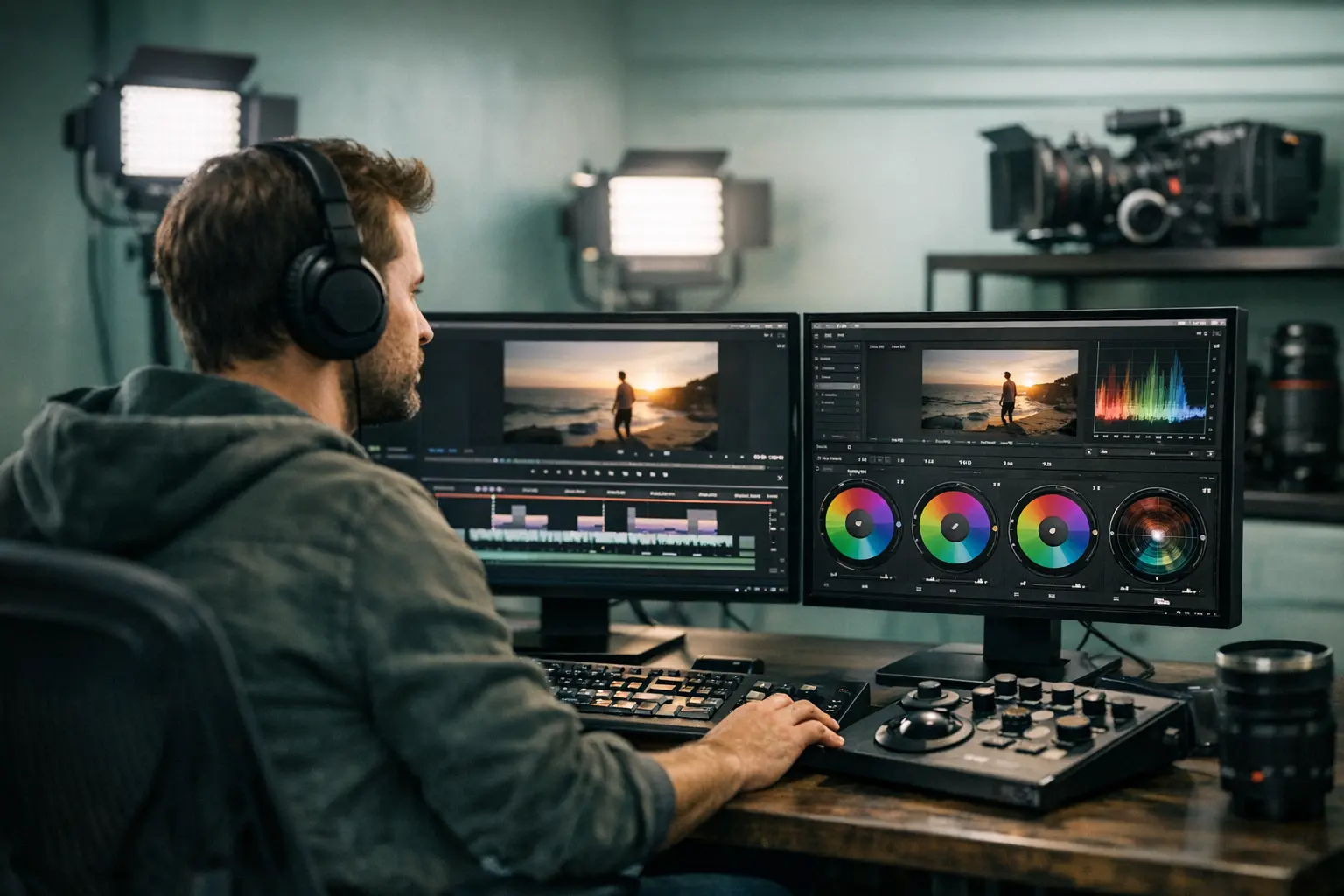
For a long time, professional-grade video editing meant paying for Adobe Premiere Pro or Final Cut Pro — tools that cost anywhere from $20 a month to $300 as a one-time purchase. Then DaVinci Resolve changed the equation. The tool that Hollywood colorists use to grade major films is available free, without a subscription, without watermarks, and with no meaningful limitations for most creators.
DaVinci Resolve for content creators is increasingly the go-to choice for anyone who wants real editing power without a recurring software bill. But it’s also genuinely different from the tools many creators start with — and knowing how it fits into your workflow, and when to use it versus lighter tools, makes all the difference.
Why DaVinci Resolve Matters for Creators
Blackmagic Design makes DaVinci Resolve and offers the core version completely free. This isn’t a stripped-down trial — it’s the same tool used in professional film and broadcast production. For content creators, that means:
Real color grading tools. Most creator-facing editors offer basic brightness, contrast, and saturation sliders. DaVinci Resolve has the most sophisticated color grading toolset of any editor, period. The same wheels and curves used to grade major films are available in the free version.
Professional audio mixing. The Fairlight audio page inside Resolve is a full digital audio workstation. For creators who record podcasts, interviews, or any content where audio quality matters, this is a significant advantage over simpler tools.
No watermarks, no subscription. CapCut’s free tier on desktop has added watermarks to exported content in some configurations. DaVinci Resolve free never adds watermarks and doesn’t require an account to use.
Handles any format. Resolve handles RAW footage, BRAW (Blackmagic’s proprietary format), ProRes, H.264, H.265, and virtually any other codec. If you’re shooting on a DSLR, mirrorless camera, or any higher-end device, Resolve handles the files natively.
DaVinci Resolve for content creators isn’t the easiest tool to start with. The interface is more complex than CapCut or iMovie, and the learning curve is real. But the ceiling is much higher — and once you’re comfortable with the workflow, you’ll produce better-looking content than most creators using simpler tools.
DaVinci Resolve vs CapCut: Different Tools for Different Workflows
Before going deeper on how to use DaVinci Resolve for content creation, it’s worth being clear about where CapCut fits better — because the answer isn’t always Resolve.
CapCut (covered thoroughly in CapCut for Creators in 2026) is purpose-built for short-form, fast-turnaround social media video. Its auto-caption feature, trending sound integration, and mobile-first interface make it exceptional for TikTok and Instagram Reels production. If you’re making a 30-second talking head clip or a quick product showcase, CapCut is almost certainly faster.
DaVinci Resolve for content creators is the better choice when:
- You’re editing a longer YouTube video, podcast recording, or interview
- Color accuracy and consistency matter (brand-consistent looks, cinematic grades)
- You’re working with footage from a camera that captures better color than a smartphone
- You need multi-track audio editing or audio mixing
- You want to repurpose a single long recording into multiple polished clips
Many creators who produce both short-form and long-form content use both tools. Long recordings get edited in DaVinci Resolve for content, then the final polished segments get exported and brought into CapCut for quick resizing or additional effects before posting to short-form platforms.
For deeper comparison on editing tools and podcast-style video content, Descript for Creators in 2026 covers a transcript-first editing approach that some creators prefer for talking-head content.
Setting Up a DaVinci Resolve Project for Social Media
When you first open DaVinci Resolve, the Project Manager appears. Here’s how to configure a project correctly for social media work.
Create a new project. Name it clearly — something like “Brand Content 2026” or the specific show name you’re producing.
Set project settings for your target format. Go to File → Project Settings → Master Settings. For most social media content:
- Timeline resolution: 1920 × 1080 (for landscape YouTube/LinkedIn) or 1080 × 1920 (for vertical Reels/TikTok)
- Timeline frame rate: Match your camera’s recording frame rate — 24fps for cinematic content, 30fps for standard social video, 60fps for smooth action or interview content
- Monitoring and output settings: Leave at defaults for standard social export
Import your footage. In the Media page (bottom left navigation), browse your file system and drag footage into the media pool. Organize clips into bins — one for raw footage, one for music, one for graphics, one for captions.
Create a new timeline. Right-click in the media pool and select “Create New Timeline.” If your project settings are correctly configured, the timeline inherits those settings automatically.
The Cut Page: Fast Editing for Social Content
DaVinci Resolve has multiple editing interfaces, called pages. For most content creators working on social media content, the Cut page is the most important starting point.
The Cut page is Resolve’s streamlined editing interface — a faster, more focused workspace compared to the full Edit page. It was specifically designed for speed-first workflows, making it well suited for DaVinci Resolve content creation when you want to move quickly.
How the Cut page works for social clips:
Open the Cut page (second icon from left in the bottom navigation bar). Your footage appears in the source viewer on the left, your timeline on the right. Mark in and out points on your clips using I and O, then press F to append the clip to your timeline, or D to add it directly under the playhead.
The Cut page strips away a lot of the complexity of the full Edit page. There are no nested effect stacks to navigate, no complex multicam tools obscuring the interface — just fast clip assembly.
For a 10-minute interview, most creators can get a clean rough cut done in the Cut page in 20-30 minutes. From there, switch to the Edit page for any fine-tuning, title cards, or motion graphics.
Color Grading Basics for Content Creators
This is where DaVinci Resolve for content creators earns its reputation. Even basic color work in Resolve produces noticeably more polished results than the auto-color tools in simpler editors.
Move to the Color page (the icon that looks like a color wheel in the bottom navigation). Your timeline clips appear as thumbnails at the top. Select a clip to grade it.
Three-step color correction process for creators:
Step 1: Exposure and white balance. Use the Lift/Gamma/Gain wheels (or the Log wheels for LOG footage) to set your overall exposure. Lift controls shadows, Gamma controls midtones, Gain controls highlights. Adjust until your image looks naturally exposed. Use the Color Wheels temperature slider to correct any unwanted color cast — push toward blue to cool an overly warm image, or push toward orange to warm a cool one.
Step 2: Color grading for style. Once your image is technically correct, you can push a look. Creamy highlights and lifted shadows create a filmic look common in YouTube lifestyle content. High contrast with deep shadows reads as more dramatic. Cooler tones with slightly desaturated greens read as professional and polished. The Curves panel gives you precise control over individual channels.
Step 3: Match consistency. When you have multiple clips from the same recording, right-click a graded clip and select “Apply Grade to All Clips” or use the group grading tools to apply a single grade across all clips from the same camera setup. This keeps your video looking visually consistent throughout.
Even a basic primary correction pass in DaVinci Resolve produces significantly better results than auto-color in most consumer editors, and that quality difference shows on screen.
Exporting for Different Social Platforms
The Deliver page (the rocket icon in bottom navigation) handles all exports. DaVinci Resolve includes built-in presets for common delivery formats.
For YouTube landscape video: Use the YouTube preset or manually set H.264 or H.265 at 1920 × 1080, target bitrate 8-16 Mbps, AAC audio at 320kbps.
For Instagram Reels and TikTok vertical video: Create a custom preset — H.264 or H.265, 1080 × 1920, bitrate 15-25 Mbps. Instagram and TikTok recompress uploaded video, so starting at a higher bitrate gives the platform better source material to work from.
For LinkedIn native video: H.264 at 1920 × 1080 or 1080 × 1920 for vertical, file size under 5GB, duration under 10 minutes for standard posts.
A practical export workflow: On the Deliver page, add each export format as a separate render job rather than exporting one at a time. Queue up your YouTube export, your Reels export, and your LinkedIn export simultaneously, then click “Start Render” to process them all in sequence. When you return, all formats are ready.
Repurposing Long-Form Content into Social Clips
One of the most valuable uses of DaVinci Resolve for content creators is extracting short clips from longer recordings. A 45-minute podcast session, a 30-minute interview, or an hour-long live stream all contain moments that work as standalone social content — but finding and exporting those moments efficiently requires a solid workflow.
Mark highlights during your edit. As you review footage in the Media or Cut page, mark potential clip moments using Resolve’s flag and marker tools. Yellow, blue, and red markers can signify different clip types (key quote, b-roll moment, product mention).
Use a bin for clip exports. Create a sub-timeline in your project specifically for social clips. Drag marked segments into this sub-timeline and assemble them. For each clip, keep it tight: the strongest clips are typically 30-90 seconds and open on something immediately engaging.
Export clips to a naming convention. Name your clip timelines with a consistent format — “2026-06-28-podcast-clip-01,” “2026-06-28-podcast-clip-02” — so your exports are automatically organized by date and sequence.
Apply a consistent look. If your long-form content has been color graded, apply the same grade to your social clips so everything looks cohesive regardless of where a viewer encounters your content.
From Edit to Audience: Scheduling Your Content
DaVinci Resolve handles editing. It doesn’t handle distribution. Once your clips are exported, getting them consistently published across your social channels requires a separate system — and this is where many creators lose the time they saved in editing.
BrandGhost is the distribution layer that connects your editing workflow to your publishing schedule. After exporting clips from DaVinci Resolve, upload them to BrandGhost and schedule them across Instagram, LinkedIn, TikTok, and other platforms from one place. Platform-specific caption adjustments, scheduling, and cross-posting all happen in BrandGhost — you don’t need to manually upload to each network.
Topic streams in BrandGhost are particularly useful for creators who repurpose long-form recordings into clip series. If you’ve edited ten clips from a single recording session, upload them all and let BrandGhost distribute them across your posting schedule over the coming weeks. Your editing session generates weeks of social content; BrandGhost makes sure that content actually reaches your audience on schedule.
Building Your Video Content Workflow
DaVinci Resolve for content creators works best when it’s part of a clear workflow rather than an ad-hoc editing session whenever you have footage to process. A repeatable workflow that most creators find effective:
Record → immediately organize raw files into clearly named folders by date and session
Ingest → import into DaVinci Resolve, organize media into bins, back up originals to a second drive
Cut → rough cut in the Cut page first, then refine in the Edit page
Color → primary correction first, then creative grade, then match consistency across clips
Audio → clean audio levels on the Fairlight page if needed (especially for interview content)
Export → queue all delivery formats simultaneously from the Deliver page
Schedule → upload exports to BrandGhost and schedule across platforms
With this workflow established, the editing process becomes predictable rather than chaotic — and predictability is what lets you maintain a consistent publishing cadence without burning out.
Is DaVinci Resolve Worth the Learning Curve?
The honest answer is: it depends on what you’re making. If your entire content output is short-form vertical video for TikTok and Instagram Reels, CapCut or even a mobile editor is probably faster and better suited to that specific format. DaVinci Resolve’s learning investment is justified when your content involves any of the following: longer-form editing, quality color work, professional audio, or footage from a dedicated camera.
For creators building a serious long-form presence on YouTube, LinkedIn, or in podcasting, DaVinci Resolve for content creators is arguably the best free tool available at any price. The color grading alone elevates the visual quality of your content above what most creators in your space are producing — and that visual quality gap is one of the clearest ways to signal professionalism to a new audience.
Start with the Cut page. Color grade a few clips. Export your first batch. The learning curve is real but not as steep as the interface first suggests — and the quality ceiling it opens up is substantial.
When your editing workflow is producing great content consistently, BrandGhost makes sure that content reaches your audience across every platform without the publishing overhead eating into the time you saved in post-production.
Frequently Asked Questions
Is DaVinci Resolve really free for content creators?
Yes. The free version of DaVinci Resolve is a full-featured, professional-grade video editor with no watermarks, no time limits, and no subscription required. The paid Studio version ($295 one-time) adds noise reduction, AI-powered tools, and some advanced collaboration features, but the vast majority of content creators will never need those extras. The free version is what most creators use and recommend.
How does DaVinci Resolve compare to CapCut for social media content?
CapCut and DaVinci Resolve serve different parts of the creator workflow. CapCut is optimized for short-form, mobile-first content — quick cuts, trending effects, auto-captions, and fast vertical video production. DaVinci Resolve is built for longer-form editing, precise color grading, professional audio work, and more complex projects. Many creators use both: CapCut for quick social clips and DaVinci Resolve for longer videos, podcast video, and any project where color and quality matter.
Can I use DaVinci Resolve on a low-end computer?
DaVinci Resolve is more resource-intensive than simpler editors like CapCut or iMovie. For smooth performance, Blackmagic Design recommends at least 16GB of RAM and a dedicated GPU. On lower-spec machines, you can improve performance by creating optimized media or using the Cut page, which is Resolve's lightweight editing interface. Many creators run Resolve successfully on mid-range laptops, especially when working with 1080p footage rather than 4K.
How do I export vertical video from DaVinci Resolve for Instagram and TikTok?
To export vertical video, create a new timeline with a custom resolution of 1080×1920 pixels and a frame rate matching your footage (typically 24, 30, or 60fps). Film or import footage in vertical orientation, edit your timeline, then use the Deliver page to export. Choose H.264 or H.265 format for the smallest file size. Set the resolution to 1080×1920 and export — the result is a properly formatted vertical video ready for Instagram Reels, TikTok, or YouTube Shorts.