Social Media Content Calendar Templates: Free Downloads for 2026
Download free social media content calendar templates for Google Sheets, Excel, and Notion. Simple, customizable templates to organize your posting schedule.
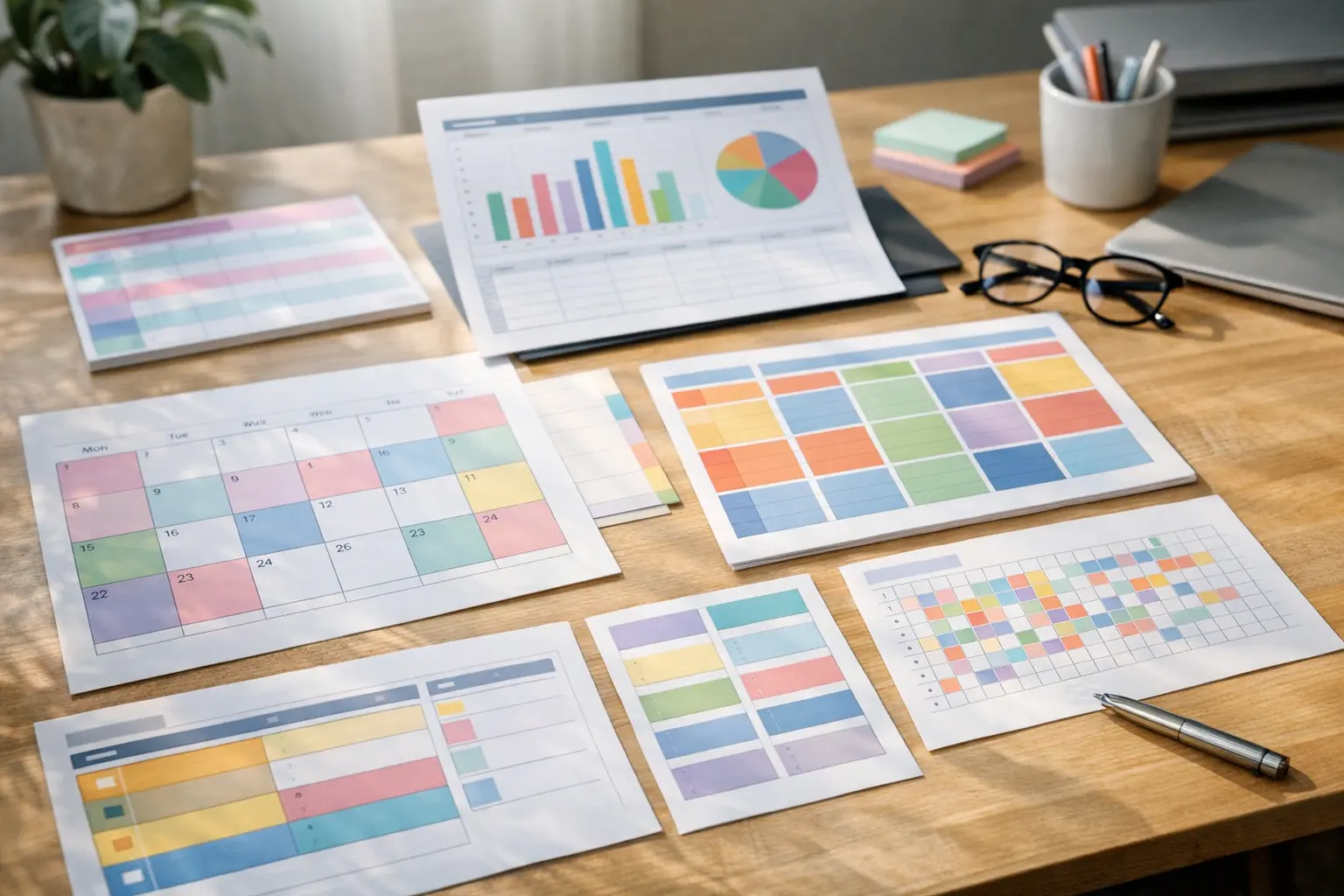
A social media calendar template gives you structure without starting from scratch. Instead of building a planning system from a blank spreadsheet, you download a template, customize it for your workflow, and start scheduling immediately.
Templates work especially well when you’re new to content planning. They show you what information to track, how to organize posts by platform, and what a functional calendar actually looks like.
This guide provides free, downloadable content calendar templates for different tools and workflows—Google Sheets, Excel, Notion, and simple PDFs. Each template is designed for creators and small teams, not enterprise agencies with approval workflows and ten stakeholders.
Why Use a Social Media Calendar Template?
Faster Setup
Building a calendar from scratch requires deciding what columns to include, how to format dates, which platforms to track, and how to organize content types. That takes time and iteration.
A template eliminates those decisions. Someone already figured out what works. You just fill it in.
Proven Structure
Good templates are built from experience. They include the right balance of detail—enough structure to stay organized, not so much complexity that you abandon it after a week.
Templates show you what successful social media content planning looks like in practice, which helps you develop your own system over time.
Easy Customization
Templates aren’t one-size-fits-all. You’ll modify any template to match your workflow.
The benefit is starting from something functional rather than a blank page. You adjust columns, add platforms, or simplify sections based on what you actually need.
Free and Accessible
Most templates are free. You don’t need expensive software or special skills to use them. If you can use Google Sheets or open a PDF, you can use a template.
That’s our social media content calendar guide covers the strategy behind effective planning—templates give you the structure to execute that strategy.
Free Social Media Calendar Templates (Download Links)
1. Simple Weekly Planning Template (Google Sheets)
Best for: Solo creators, beginners, or anyone who prefers weekly planning over monthly.
What’s included:
- 7-day view with multiple post slots per day
- Platform column (Instagram, Twitter, LinkedIn, TikTok, Facebook)
- Caption/copy field
- Media type (image, video, carousel, text)
- Post status (draft, scheduled, published)
- Notes field for hashtags, links, or reminders
Why it works:
Weekly planning is less overwhelming than staring at a blank monthly calendar. You plan one week at a time, which keeps your content fresh and reactive to what’s happening now.
This template is minimal by design. It doesn’t track 15 data points per post. It tracks what matters: when, where, and what you’re publishing.
How to use it:
- Make a copy of the template
- Customize the platforms column (remove what you don’t use)
- Fill in your posting times for each day
- Add your content for the week
- Use filters or color-coding to view one platform at a time
This template pairs well with monthly content planning strategies if you want to outline themes for the month, then break them into weekly execution.
2. Monthly Content Calendar (Google Sheets)
Best for: Creators who want big-picture visibility and plan 30 days in advance.
What’s included:
- Full month view with multiple posts per day
- Platform tags
- Content pillar/type column (educational, promotional, engaging, entertaining)
- Campaign tagging
- Performance tracking columns (optional)
- Color-coding by content type
Why it works:
Monthly planning gives you strategic oversight. You can see your entire content mix at a glance, spot imbalances (too many promotional posts, not enough educational content), and ensure campaign posts are properly spaced.
The monthly view also helps with cross-platform coordination. If you’re posting on five platforms, you need to see the full picture to avoid overwhelming your audience or leaving gaps.
How to use it:
- Duplicate the template for each month
- Fill in key dates (holidays, launches, events)
- Block out content themes by week
- Schedule posts, balancing content types across the month
- Review at the end of the month and adjust next month’s plan based on performance
If you’re managing multiple platforms, this template shows you what’s scheduled where—reducing the chance of double-posting or accidentally skipping a network.
3. Campaign Planning Template (Excel)
Best for: Product launches, seasonal campaigns, or multi-post storytelling.
What’s included:
- Campaign overview (goals, dates, key messages)
- Post-by-post breakdown
- Platform distribution
- Asset checklist (graphics, videos, copy)
- Timeline/Gantt chart view
- Team roles (if working with others)
Why it works:
Campaigns need more structure than regular posting. You’re telling a cohesive story across multiple posts and platforms, which requires coordination.
This template helps you map the entire campaign before you start creating content. You’ll spot gaps, ensure messaging consistency, and coordinate timing across platforms.
How to use it:
- Define campaign goals and key dates
- Outline the narrative arc (what story are you telling?)
- Map individual posts to specific campaign beats
- Assign platforms for each post
- Track asset creation (who’s making the graphics? when are they due?)
- Schedule everything using your preferred tool
Campaigns often tie into content batching workflows—you create all campaign assets at once, then schedule them across the campaign timeline.
4. Notion Content Calendar (Notion Template)
Best for: Visual planners, teams using Notion, or anyone who wants a more flexible/dynamic calendar.
What’s included:
- Board view (drag-and-drop cards)
- Calendar view (traditional monthly layout)
- Table view (spreadsheet-style)
- Content database with tags, status, platform, and content pillar
- Linked databases for asset management and performance tracking
Why it works:
Notion’s flexibility lets you view your calendar in multiple formats. Use board view when planning, calendar view when scheduling, and table view when analyzing performance.
The database structure makes filtering easy—show only Instagram posts, or only educational content, or only posts scheduled for next week.
How to use it:
- Duplicate the Notion template to your workspace
- Customize properties (add your platforms, content pillars, tags)
- Create new posts as database entries
- Assign dates, platforms, and content types
- Switch between views based on what you’re working on
- Link to other Notion pages for asset storage or campaign planning
Notion templates work well if you’re already using Notion for other parts of your workflow. Everything lives in one workspace.
5. Instagram Content Grid Planner (PDF)
Best for: Instagram-focused creators who prioritize visual cohesion.
What’s included:
- 3×3, 6×6, and 9×9 grid layouts
- Space to sketch or paste thumbnail previews
- Caption placeholders
- Posting date/time fields
- Hashtag strategy notes
Why it works:
Instagram is a visual platform. Your grid matters. This template helps you plan how posts will look together before you publish.
You can experiment with different arrangements—alternating text posts with photos, spacing out similar colors, or creating a checkerboard pattern—without committing to anything yet.
How to use it:
- Print the template or use it digitally (PDF annotator)
- Sketch or paste thumbnails of planned posts
- Rearrange until the grid looks cohesive
- Note captions and hashtags for each post
- Transfer finalized posts to your scheduling tool
If Instagram grid aesthetics matter to your brand, this template prevents posting something that breaks your visual flow. You’ll see the full grid layout before anything goes live.
How to Choose the Right Template for Your Workflow
Consider Your Planning Style
Weekly planners work if you:
- Prefer shorter planning sessions
- React to trends frequently
- Find monthly planning overwhelming
Monthly planners work if you:
- Like big-picture visibility
- Run campaigns that span weeks
- Batch-create content in advance
Campaign planners work if you:
- Launch products or seasonal promotions regularly
- Need to coordinate storytelling across multiple posts
- Work with a team
Consider Your Platforms
If you’re focused on one platform (Instagram only, or TikTok only), you can use a simpler template.
If you’re posting across five platforms, you need a template that shows cross-platform scheduling. Otherwise you’ll lose track of what’s scheduled where.
Tools like BrandGhost replace templates entirely by showing all platforms in one unified calendar view. You don’t need a spreadsheet when the tool itself is your calendar.
Consider Your Team Size
Solo creators can use simple templates with minimal columns.
Teams need templates that track:
- Who’s creating each asset
- Approval status
- Platform assignment
- Performance tracking for reporting
If your template has more columns than you use, it’s too complex. Simplify it.
When to Move Beyond Templates
Templates are helpful when starting out, but most creators outgrow them within a few months.
Signs you’ve outgrown a template:
- You’re manually copying posts into multiple platforms. Templates don’t publish for you. Scheduling tools do.
- You’re losing track of what’s scheduled where. Spreadsheets don’t sync with social platforms. Tools like BrandGhost show actual scheduled posts, not just your plans.
- Updating the template takes as long as scheduling posts. If maintaining the template is slowing you down, it’s time to switch to a tool.
- You need analytics. Templates don’t track performance. Tools show what’s working.
Templates teach you what information to track and how to organize your planning process. Once you know that, a dedicated social media content planning tool like BrandGhost removes friction and automates the busywork.
Our comparison of social media calendar tools helps you decide when to make the switch and which tool fits your workflow.
Customizing Templates for Your Workflow
No template will match your workflow perfectly. Here’s how to customize them:
Add or Remove Platforms
Most templates include Instagram, Facebook, Twitter, LinkedIn, and TikTok. If you’re not using all of them, delete those rows. If you’re using Pinterest, Threads, or Mastodon, add them.
Adjust Content Categories
Default templates often include “educational,” “promotional,” and “entertaining” categories. Customize these to match your content pillars.
If your pillars are “tutorials,” “behind-the-scenes,” and “client stories,” update the template labels accordingly.
Simplify or Expand Tracking
Beginners should simplify. Remove columns you won’t use. Track less data, not more.
As you get comfortable, you can add fields like:
- Campaign tags
- Performance notes
- Hashtag groups
- UTM parameters for links
But don’t add complexity upfront. Start minimal, expand as needed.
Color-Code for Clarity
Use colors to differentiate:
- Platforms (Instagram = purple, Twitter = blue)
- Content types (educational = green, promotional = yellow)
- Post status (draft = gray, scheduled = blue, published = green)
Color-coding helps you scan the calendar quickly without reading every cell.
Using Templates with Scheduling Tools
Templates and scheduling tools can work together:
- Plan in the template (big-picture strategy, campaign mapping)
- Schedule in the tool (execution, cross-posting, publishing)
This hybrid approach gives you strategic oversight (template) and automation (tool) without duplicating work.
For example:
- Use a monthly template to map content themes and campaigns
- Use BrandGhost to schedule, customize, and publish those posts across platforms
You’re not maintaining two calendars—the template is for planning, the tool is for execution.
Alternatives to Templates: Social Media Planning Tools
If templates feel too manual, these tools combine calendar planning with scheduling:
BrandGhost – Built for creators. Topic Streams organize ideas, recurring content automates evergreen posts, and cross-posting adapts posts for each platform automatically.
Buffer – Simple interface, good for beginners. Queue-based scheduling works well for solo creators.
Hootsuite – Enterprise-focused. Overkill for most creators, but powerful if you need team workflows and advanced analytics.
Later – Visual planner for Instagram. Works well if Instagram is your primary platform.
Most creators benefit from starting with a template to understand the planning process, then moving to a tool like BrandGhost once they’re ready to automate.
Our social media content calendar guide covers the full process from strategy to execution, whether you’re using a template or a tool.
Final Thoughts on Templates
A social media calendar template gives you structure and helps you build a planning habit. It’s a low-risk way to test content calendar workflows without committing to paid tools.
Download one, customize it for your platforms and workflow, and start planning. If it works, keep using it. If you outgrow it, migrate to a scheduling tool.
The goal isn’t to find the perfect template. The goal is to start planning your content so you can post consistently without scrambling for ideas every day.
If you’re ready to move beyond templates and automate your social media content planning, try BrandGhost for free. It’s built for creators who want simple planning, fast scheduling, and true cross-posting without the complexity of enterprise tools.
Frequently Asked Questions
Where can I download free social media content calendar templates?
You can download free templates from BrandGhost, Hootsuite, Buffer, Sprout Social, and HubSpot. Most offer Google Sheets, Excel, or PDF formats. BrandGhost provides templates specifically designed for creators and small teams, focusing on simplicity and ease of use.
What should be included in a social media calendar template?
Essential fields: post date and time, platform, caption/copy, content type (image, video, carousel), and post status (draft, scheduled, published). Optional but useful: content pillar or category, campaign tags, hashtags, links, media attachments, and performance notes. Don't add fields you won't use—complexity kills consistency.
Can I use a template for multiple social media platforms?
Yes, most templates include multi-platform tracking. Use one column or row to specify which platforms each post goes to (Instagram, Twitter, LinkedIn, TikTok, Facebook). Color-coding or filtering helps view one platform at a time.
Are templates better than social media scheduling tools?
Templates are better for learning the planning process and understanding what information to track. Scheduling tools like BrandGhost are better for execution—they publish posts, customize for different platforms, and show real-time schedules. Most creators start with templates, then migrate to tools once they understand their workflow.
How do I customize a social media calendar template?
Make a copy (don't edit the original), then adjust: remove platforms you don't use, add ones you do, customize content categories to match your pillars, simplify by removing unused columns, add color-coding for visual clarity, and adjust date formats or time zones. Templates are starting points, not final products. Customize based on your workflow—if a column sits empty every week, delete it.
What's the difference between weekly and monthly calendar templates?
Weekly templates show 7 days with detailed post information—best for reactive planning, trend-focused content, or beginners who find monthly planning overwhelming. Monthly templates show 30+ days with higher-level overview—best for strategic planning, campaign coordination, or batch content creation. Many creators use both: monthly template for big-picture strategy, weekly template for execution.
Do I need different templates for different platforms?
No, use one unified template that tracks all platforms. Separate templates create confusion and duplicate work. A single calendar with a "platform" column lets you see your entire content strategy across all networks.