How to Schedule Instagram Posts from Desktop: 2026 Guide
Learn how to schedule Instagram posts from your desktop computer using Meta Business Suite and third-party tools. Complete workflow guide for computer-based scheduling.
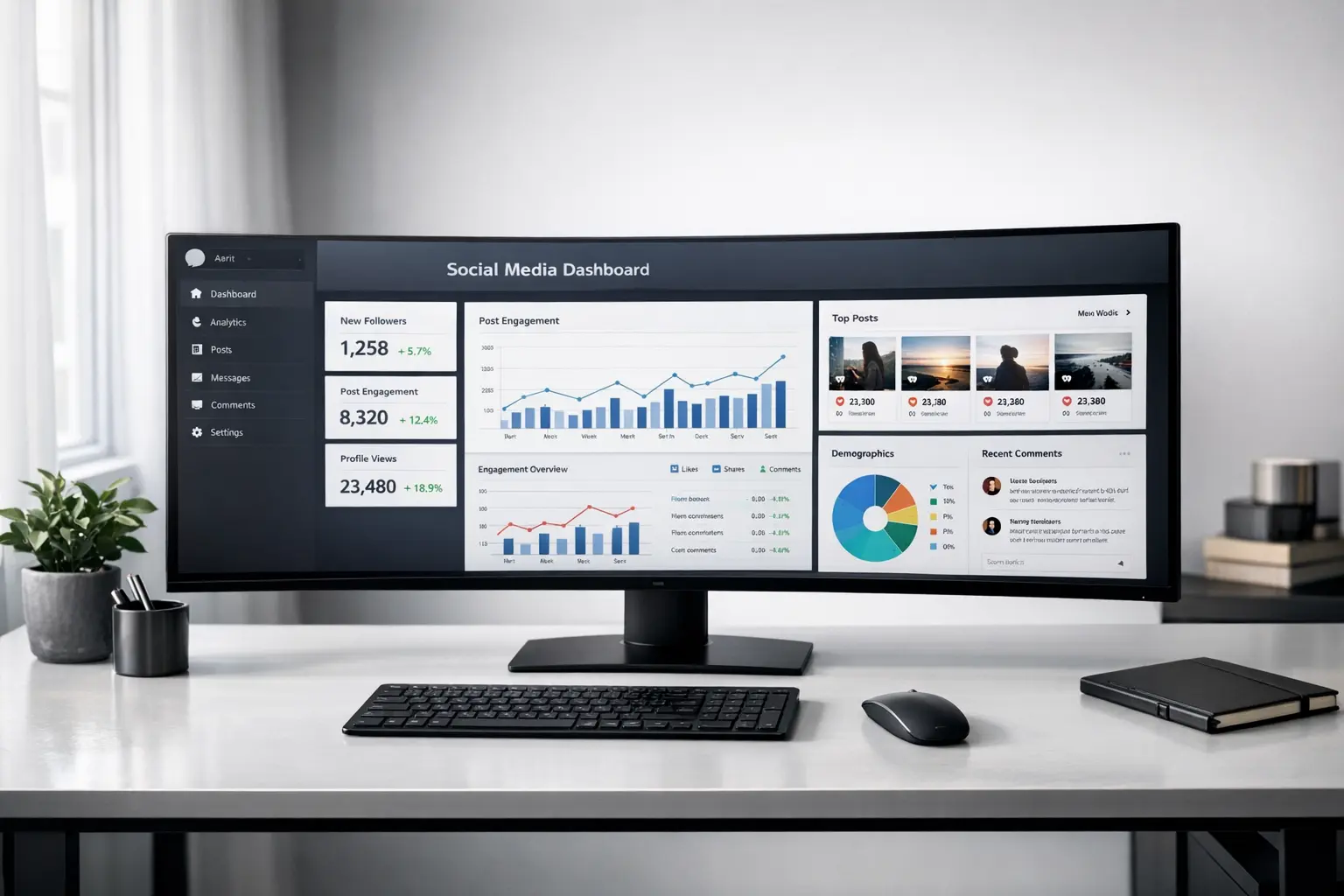
Knowing how to schedule Instagram posts from desktop transforms your content workflow. While Instagram originated as a mobile-first platform, desktop scheduling offers significant advantages for creators and businesses who produce content on computers, manage large media libraries, or prefer keyboard-based composition.
Desktop scheduling provides larger screens for editing and preview, easier file management for batch operations, and more efficient text input for detailed captions and hashtags. For professional creators producing high volumes of content, desktop workflows often outpace mobile alternatives.
This guide covers every method for scheduling Instagram content from your computer, helping you build efficient desktop-centered workflows.
Why Desktop Scheduling Makes Sense
Desktop Instagram scheduling offers practical advantages that make content management more efficient, especially for professional creators and businesses.
Larger screens provide better visual context. Previewing how content will appear, reviewing multiple scheduled posts at once, and catching visual issues before publication all benefit from desktop display real estate. Mobile screens constrain this visibility.
File management works more efficiently on desktop. Organizing media libraries, bulk-renaming files, editing images or videos in professional applications, and managing assets across multiple scheduled posts all happen more smoothly on computers than phones.
Text composition is faster with physical keyboards. Writing detailed captions, inserting emoji codes methodically, formulating hashtag sets, and editing text all happen more efficiently with full keyboards than mobile touch screens—especially for longer captions.
Professional content creation increasingly happens on computers. If you shoot photos with cameras, edit video in desktop software, or design graphics in professional applications, your assets already live on your computer. Desktop scheduling keeps your workflow on one device rather than constantly transferring files to your phone.
Multi-platform management benefits from desktop efficiency. If you manage Instagram alongside other social platforms, desktop social media management tools provide unified interfaces that would be fragmented across multiple mobile apps.
Scheduling Through Meta Business Suite on Desktop
Meta Business Suite provides free desktop scheduling for Instagram through the business.facebook.com web interface. Since Meta owns Instagram, this integration is officially supported and fully featured.
Navigate to business.facebook.com in your desktop browser and log in with the Facebook account connected to your Instagram Professional account. If you manage multiple accounts, select the appropriate Instagram account from your account switcher.
The Business Suite interface displays a dashboard with various tools. Navigate to the Content Planner section to see a calendar view of your scheduled and published content. This visual overview shows your entire content schedule across days or weeks.
To create new scheduled content, look for the Create Post button or similar creation option. The post composer opens with platform selection—choose Instagram specifically or multiple platforms if cross-posting.
Upload your visual content by clicking the media upload area. Navigate to image or video files stored on your computer and select them. For carousels, select multiple files. The interface displays uploaded media with options to crop, reorder, or remove items.
Write your caption in the text field provided. Desktop browsers support full keyboard input, making caption composition efficient. Include hashtags, mentions, and any calls to action. Preview how your complete caption will appear.
Find the scheduling option near the publish controls. Instead of publishing immediately, select the schedule function. A date and time picker appears. Select when you want your content to go live based on when your audience is most active.
Confirm your scheduled post. Business Suite queues the content for automatic publication at your specified time. You can continue creating and scheduling additional content as needed.
After scheduling, manage your queue through the Content Planner view. Click any scheduled post to preview, edit, reschedule, or delete it. This management interface makes adjustments straightforward when plans change.
Third-Party Desktop Scheduling Tools
Beyond Meta’s native option, several third-party platforms offer desktop scheduling with additional features that justify their costs for many users.
BrandGhost provides a desktop web interface designed for content creators managing multiple platforms. Schedule Instagram content alongside content for other networks from a unified dashboard. The desktop interface offers full scheduling functionality with visual calendar planning.
Later offers a desktop experience through their web application at later.com. Their grid preview feature helps visualize how scheduled posts will appear on your Instagram profile, which works especially well on larger desktop screens.
Buffer provides their scheduling interface through a web application accessible from any desktop browser. The clean interface emphasizes simplicity, making batch scheduling straightforward.
Hootsuite offers comprehensive desktop social media management with Instagram scheduling among its many features. The platform suits teams and agencies managing multiple accounts and clients.
Planoly provides desktop access through their web application, with visual planning features that benefit from larger screens. Their Instagram-focused design helps with grid aesthetics planning.
When choosing a tool, consider whether its desktop interface provides real advantages over mobile. Some platforms have stronger desktop implementations than others. Trial periods let you evaluate before committing.
Workflow Optimization for Desktop Scheduling
Desktop scheduling enables efficient workflows not easily replicated on mobile devices. Structuring your process around desktop strengths maximizes these advantages.
Organize your content library on your computer. Create folder structures that make finding assets efficient—perhaps organized by content theme, by week, or by content type. Having organized assets ready when you sit down to schedule speeds the process.
Prepare media assets before opening scheduling tools. Edit images in your preferred photo application, render videos at proper specifications, and finalize all creative decisions before starting the scheduling process. Scheduling time becomes purely administrative rather than mixed with creative work.
Use a second monitor if available. Spreading your scheduling interface across one screen while viewing your content calendar or caption drafts on another enables efficient multitasking that mobile screens can’t provide.
Batch your scheduling sessions. Rather than scheduling one post at a time, sit down for dedicated sessions where you schedule an entire week or more. The startup cost of opening tools and getting into scheduling mode only happens once when you batch.
Create text files with pre-written caption elements. Save frequently-used hashtag sets, standard calls-to-action, and recurring caption structures in documents you can copy-paste from. This preparation accelerates caption writing during scheduling sessions.
Keep a running content calendar document alongside your scheduling tool. Planning what will be scheduled when should precede the actual scheduling process. Having your editorial calendar visible while scheduling ensures you execute your plan accurately.
Desktop Scheduling for Different Content Types
Different Instagram content types work well with desktop scheduling, though with varying considerations.
Feed posts—standard image posts—schedule seamlessly from desktop. Upload images stored on your computer, write captions using your keyboard, and schedule for optimal times. This content type benefits most obviously from desktop workflows.
Carousel posts work efficiently on desktop. Uploading and ordering multiple images, ensuring visual consistency across slides, and writing captions that complement multi-image narratives all benefit from larger screens and efficient file management.
Reels scheduling from desktop requires your video files to be already on your computer. If you edit Reels using desktop video software, assets are naturally in the right place. If you create Reels on your phone, you’ll need to transfer files to schedule from desktop.
Stories have more limited desktop scheduling support. While Meta Business Suite can schedule Stories from desktop, some interactive Story elements only work through the mobile app. Desktop scheduling works for image and video Stories but not for Stories requiring stickers added in real-time.
Consider your content mix when designing your workflow. Content types that benefit most from desktop scheduling might be prioritized for desktop sessions, while content requiring mobile-specific features might remain in mobile workflows.
Transferring Mobile Content to Desktop
Many creators capture content on phones but prefer scheduling from computers. Efficient transfer methods bridge this gap.
Cloud storage services like Google Drive, Dropbox, or iCloud automatically sync photos and videos from your phone to accessible storage your computer can reach. Set up automatic photo backup, and new captures appear on your desktop without manual transfer.
Direct cable transfer remains reliable. Connecting your phone to your computer and copying files directly provides fast transfer without depending on cloud services. This works well for large video files that might take too long to sync through cloud services.
Email works for occasional single-file transfers. Emailing yourself an image or short video from your phone makes it accessible on your computer. This method is inefficient for bulk transfers but convenient for one-off needs.
Messaging apps like Telegram or Discord let you send files to yourself. Create a conversation with just yourself and send media files, then access that conversation on your desktop to download the files.
Consider workflow design that minimizes transfer needs. Perhaps content captured on phones gets scheduled from phones while content created on computers gets scheduled from computers. Or invest time setting up robust automatic cloud sync so transferred files appear on your desktop with minimal manual effort.
Managing Media Libraries for Desktop Scheduling
Effective desktop scheduling requires organized media libraries that make finding the right assets efficient.
Develop consistent file naming conventions. Naming files with dates, content themes, or post types makes finding specific assets faster. Generic camera roll names force you to open files to identify them; descriptive names reveal content at a glance.
Organize into folders by scheduling period or content category. Perhaps weekly folders contain all assets for that week’s scheduled content. Or category folders group similar content types together. Choose an organization scheme that matches your mental model.
Archive assets after use rather than deleting immediately. Moving used assets to archive folders keeps your active library clean while preserving the ability to recycle successful content later.
Maintain a visual reference document showing what’s scheduled. A simple document with small preview images alongside scheduled dates and times helps prevent duplicate posting and clarifies your upcoming schedule.
Regular library maintenance prevents clutter accumulation. Periodically review your asset folders, archive or delete unused items, and reorganize as your content categories evolve.
Conclusion
Mastering how to schedule Instagram posts from desktop creates workflow efficiencies that benefit professional creators and businesses. Larger screens, better file management, efficient text composition, and unified multi-platform management all make desktop scheduling valuable.
Meta Business Suite provides free, full-featured desktop scheduling through the web interface. Third-party tools add features like visual grid planning, team collaboration, and enhanced calendar views. Choose tools that complement your existing workflow and content creation processes.
For comprehensive guidance on scheduling across both desktop and mobile, see our complete guide on how to schedule Instagram posts.
Frequently Asked Questions
Can I post to Instagram directly from my computer without scheduling?
Yes. Meta Business Suite allows immediate publishing from desktop, not just scheduling. You can create content and publish it immediately rather than selecting a future time.
Does Instagram have its own desktop website for posting?
Instagram's website at instagram.com now supports some posting functionality, though with limitations compared to mobile. For full features including scheduling, Meta Business Suite provides more complete desktop capabilities.
Are there any disadvantages to scheduling from desktop?
Content captured on your phone requires transfer to your computer first, adding a workflow step. Some Story features requiring mobile app stickers won't work through desktop scheduling. Otherwise, desktop scheduling provides advantages rather than disadvantages for most professional workflows.
Can I schedule Instagram Reels from my desktop?
Yes. Meta Business Suite supports Reels scheduling from desktop, as do major third-party scheduling tools. Your Reel video file needs to exist on your computer—either edited there originally or transferred from your phone.
Which third-party tool has the best desktop experience?
This varies by preference and needs. Later and Planoly emphasize visual planning that benefits from desktop screens. Hootsuite and Buffer emphasize efficiency across platforms.