Schedule Facebook Posts from Desktop: Complete 2026 Guide
Learn how to schedule Facebook posts from desktop using Meta Business Suite and professional tools. Step-by-step desktop scheduling workflow guide.
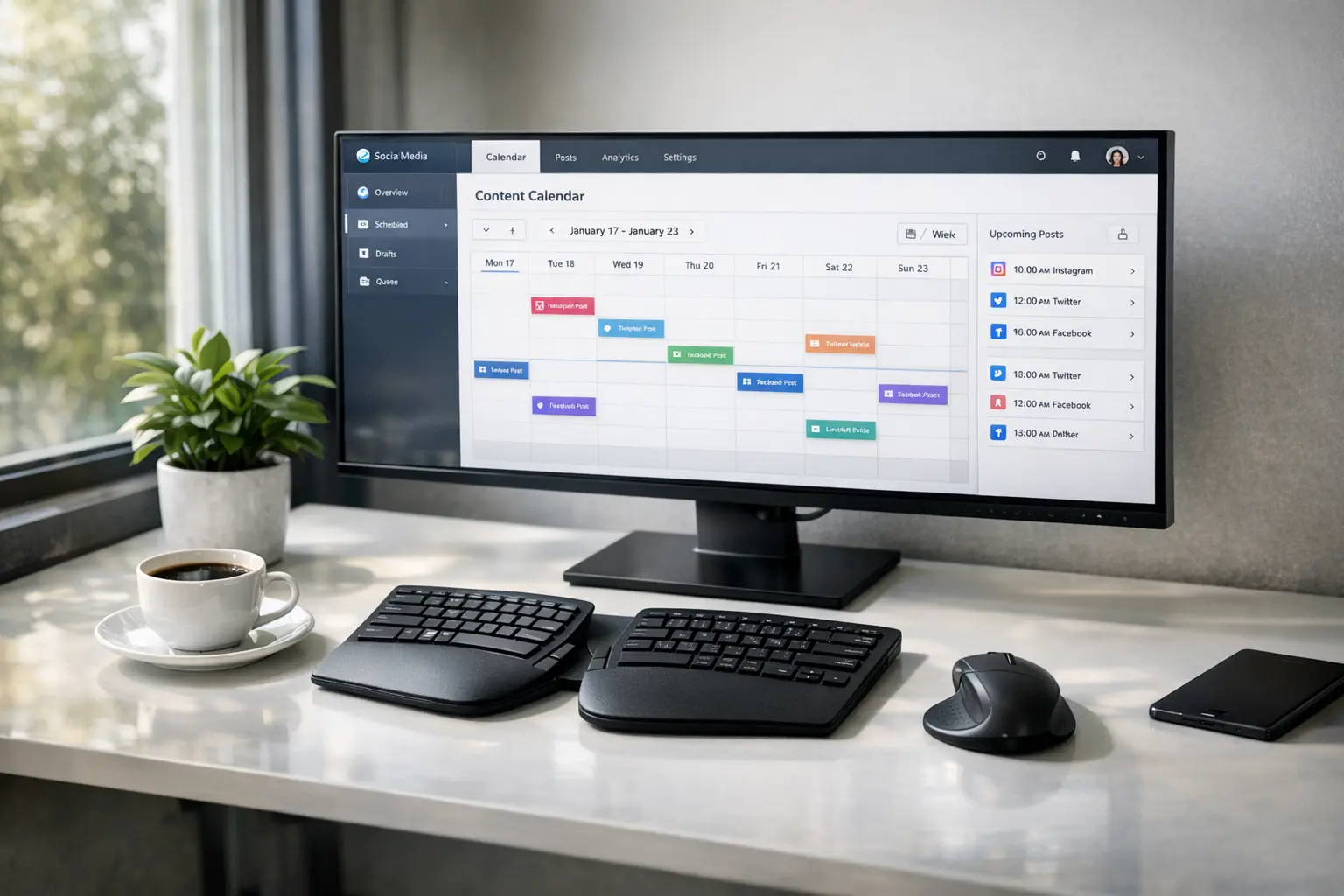
Managing Facebook content from a desktop computer offers advantages that mobile scheduling can’t match. When you schedule Facebook posts from desktop, you gain larger screens for content review, easier media management, full keyboard access for writing, and often faster workflows that make batch scheduling practical.
This guide covers everything you need to know about how to schedule Facebook posts from desktop, including Meta Business Suite’s web interface, third-party tools, and workflow optimizations that maximize desktop scheduling efficiency.
Why Desktop Scheduling Works Better for Many Users
While mobile scheduling has its place, desktop offers distinct advantages for serious content creators.
Screen real estate matters when reviewing content. Seeing your post as it will appear, checking media quality, and reviewing multiple scheduled posts at once works better on a 24-inch monitor than a 6-inch phone screen. Desktop layouts let you view calendars, post previews, and editing tools simultaneously.
Keyboard input speeds up caption writing dramatically. Long-form captions with careful wording, proper formatting, and strategic hashtags are easier to compose with full keyboards. Editing existing text—moving sentences, adjusting phrasing—becomes frustrating on touchscreens.
File management integrates naturally with desktop workflows. Your photos, videos, and graphics likely live on your computer. Uploading them directly from desktop folders is smoother than transferring to phone first. Professional media editing happens on desktop, so scheduling can follow immediately without device switching.
Multi-tab workflows enable efficient batching. Open your content calendar in one tab, Analytics in another, Meta Business Suite’s scheduler in a third, and your media library in a fourth. Desktop browsers handle this multitasking gracefully; mobile apps don’t.
For occasional quick posts, mobile works fine. For serious content management—batch creation, calendar planning, performance review—desktop significantly outperforms mobile.
Scheduling Through Meta Business Suite Web Interface
Meta Business Suite’s website at business.facebook.com provides the primary free desktop scheduling interface.
Navigate to business.facebook.com and log in with the Facebook account that has admin access to your Page. The interface may initially show all your connected properties; select the specific Page you want to schedule for from the account picker.
The main dashboard offers several navigation paths to content creation. Look for a prominent “Create post” button or find the “Posts & reels” section in the left navigation. Either path leads to the content creation interface.
In the content creator, compose your post text in the main text field. Add media by clicking the photo/video upload options and selecting files from your computer. For Reels, select the Reel creation flow specifically. Configure all post elements—mentions, links, location tags—as desired.
The scheduling option appears near the publish button. This might be a dropdown arrow revealing “Schedule” or a separate scheduling button depending on the current interface version. Click it to access the date and time picker.
Select your desired publication date and time. The calendar interface lets you click specific dates and set exact times including timezone. Confirm your selection, and your post enters the scheduled queue rather than publishing immediately.
Review scheduled posts through the Content Planner or Calendar view. This visual calendar shows all upcoming scheduled content, letting you see posting frequency, identify gaps, and verify that your schedule aligns with your content strategy.
Alternative Desktop Scheduling Tools
Beyond Meta’s native tools, third-party platforms offer desktop scheduling with additional features.
Buffer provides a clean desktop interface for scheduling Facebook posts alongside content for other platforms. The queue-based system lets you fill a content queue that publishes according to a schedule you define. Buffer’s analytics show post performance, helping you refine timing and content decisions.
Hootsuite offers more enterprise-focused features including team collaboration, approval workflows, and unified inbox for managing comments across platforms. The desktop interface provides comprehensive social media management beyond just scheduling.
Sprout Social targets larger organizations with sophisticated reporting, listening tools, and publishing capabilities. The desktop experience emphasizes workflow efficiency for teams managing high-volume social presences.
Later began as an Instagram tool but now supports Facebook with visual planning features. Its calendar interface lets you drag and drop content, helpful for highly visual content strategies.
Choosing among these tools depends on your needs. Solo creators typically find Meta’s free tools sufficient. Teams benefit from collaboration features in paid tools. Multi-platform publishers appreciate unified dashboards. Evaluate free trials before committing.
Optimizing Your Desktop Scheduling Workflow
Efficient desktop scheduling emerges from thoughtful workflow organization, not just better tools.
Organize your content library for quick access. Create folder structures on your computer that match your content categories or posting schedule. When creating this week’s posts, you can navigate directly to the relevant folder rather than hunting through unorganized downloads.
Use browser bookmarks for quick access to scheduling interfaces. A single click to your Meta Business Suite content calendar beats typing URLs or navigating through Facebook’s main interface.
Establish dedicated scheduling sessions rather than scattered efforts. Block time weekly—perhaps Sunday evening or Monday morning—for reviewing your content calendar and scheduling upcoming posts. Consolidated sessions are more efficient than daily interruptions.
Prepare templates for recurring content types. If you post weekly tip threads, create a text template with standard formatting that you customize each week. Templates speed up creation and ensure consistency.
Consider dual-monitor setups for maximum efficiency. Source materials on one screen, scheduling interface on the other. No minimizing windows or switching contexts.
Managing Media for Desktop Scheduling
Desktop environments excel at media management for scheduling workflows.
When editing photos or videos for Facebook, save versions specifically sized for the platform. Facebook’s recommended dimensions vary by placement—feed posts, Stories, Reels all have different optimal sizes. Save appropriately sized exports so you’re not uploading oversized files that Facebook compresses.
Maintain a scheduling-ready media folder. After completing edits, export to a dedicated folder where files are ready for immediate upload. This separation keeps your working files distinct from production-ready assets.
Use descriptive file names that help you identify content quickly. “feb15-product-launch-reel.mp4” tells you more than “final_v2.mp4” when you’re scanning folders weeks later.
For video content, preview thoroughly on desktop before scheduling. What displays well in editing software might reveal compression artifacts or timing issues when viewed in Facebook’s preview. Better to catch problems before scheduling than after publication.
Keyboard Shortcuts and Efficiency Tips
Desktop browsers offer efficiency shortcuts that speed scheduling.
Tab between form fields when composing posts. Rather than clicking each element, Tab moves you through text fields, across options, and toward the publish button.
Copy-paste hashtag sets if you use consistent hashtags. Maintain a text file or notes document with commonly used hashtag groups. Paste rather than re-type each time.
Use browser text replacement features for frequently typed phrases. Your tagline, website URL, or standard calls-to-action can be inserted with short triggers instead of full typing.
Multiple browser tabs let you reference and schedule simultaneously. Open your content calendar spreadsheet, reference photos, scheduled posts calendar, and creation interface in different tabs. Quick switching between tabs is faster than window management.
Desktop screen capture tools make creating quick content easy. Screenshot interesting content for commentary posts; screen-record simple explainers. Desktop tools for this are more capable than mobile equivalents.
Desktop Versus Mobile: When Each Works Best
Desktop and mobile scheduling serve different situations. Understanding when to use each maximizes both.
Desktop excels for planned, batch scheduling sessions. When you’re creating a week’s content, reviewing performance, adjusting your calendar—these concentrated work sessions suit desktop environments.
Mobile works for quick additions or adjustments. Scheduling a quick thought while commuting, updating a post’s timing from bed, capturing spontaneous content ideas—mobile enables these lightweight interactions.
Urgent real-time responses often happen mobile first. If you need to post about breaking news immediately, your phone might be accessible when your computer isn’t. Don’t insist on desktop for time-sensitive content.
Review and approval often suit desktop better. Managers reviewing scheduled content from their team can see more context on desktop screens and make faster decisions.
Develop hybrid workflows that leverage each device’s strengths. Perhaps you capture content ideas on mobile throughout the week, then batch-schedule from desktop during dedicated sessions.
Conclusion
When you schedule Facebook posts from desktop, you gain significant workflow advantages over mobile-only approaches. Larger screens, full keyboards, better file management, and multi-tasking capabilities make desktop ideal for serious content management.
Meta Business Suite’s web interface provides capable free scheduling, while third-party tools add features for teams and multi-platform publishers. Build workflows that leverage desktop strengths—batch creation, organized media libraries, dedicated scheduling sessions—while keeping mobile available for quick additions and real-time responses.
For comprehensive guidance on Facebook scheduling across all devices and methods, see our complete guide on how to schedule Facebook posts.
Frequently Asked Questions
Do I need a Meta Business Suite account separate from my Facebook account?
No. Meta Business Suite uses your existing Facebook login. If your Facebook account has admin access to a Page, you can access that Page through Business Suite without any additional account creation.
Can I schedule personal profile posts from desktop?
Standard scheduling works for Pages, not personal profiles. If you want to schedule personal profile content, you'll need workarounds like using Facebook's Creator Studio or converting your profile to a professional account that grants additional features.
What browsers work best for desktop scheduling?
Any major modern browser—Chrome, Firefox, Safari, Edge—works fine. Facebook's interfaces are web-standard. Choose whichever browser you prefer and already use.
How do I schedule posts for multiple Pages from desktop?
In Meta Business Suite, use the account picker to switch between Pages. Each Page has its own content calendar and scheduling queue. You can schedule to one Page, then switch to another and schedule there.
Can I schedule Facebook Events or other non-post content from desktop?
Events, fundraisers, and some other Facebook content types have their own creation interfaces that may or may not include scheduling. Post scheduling specifically covers feed posts, Stories, and Reels. Check each content type's creation flow for scheduling availability.