How to Schedule YouTube Shorts: Step-by-Step Guide for 2026
Learn how to schedule YouTube Shorts using YouTube Studio and third-party tools. Step-by-step guide for creators who want to plan short-form videos in advance.
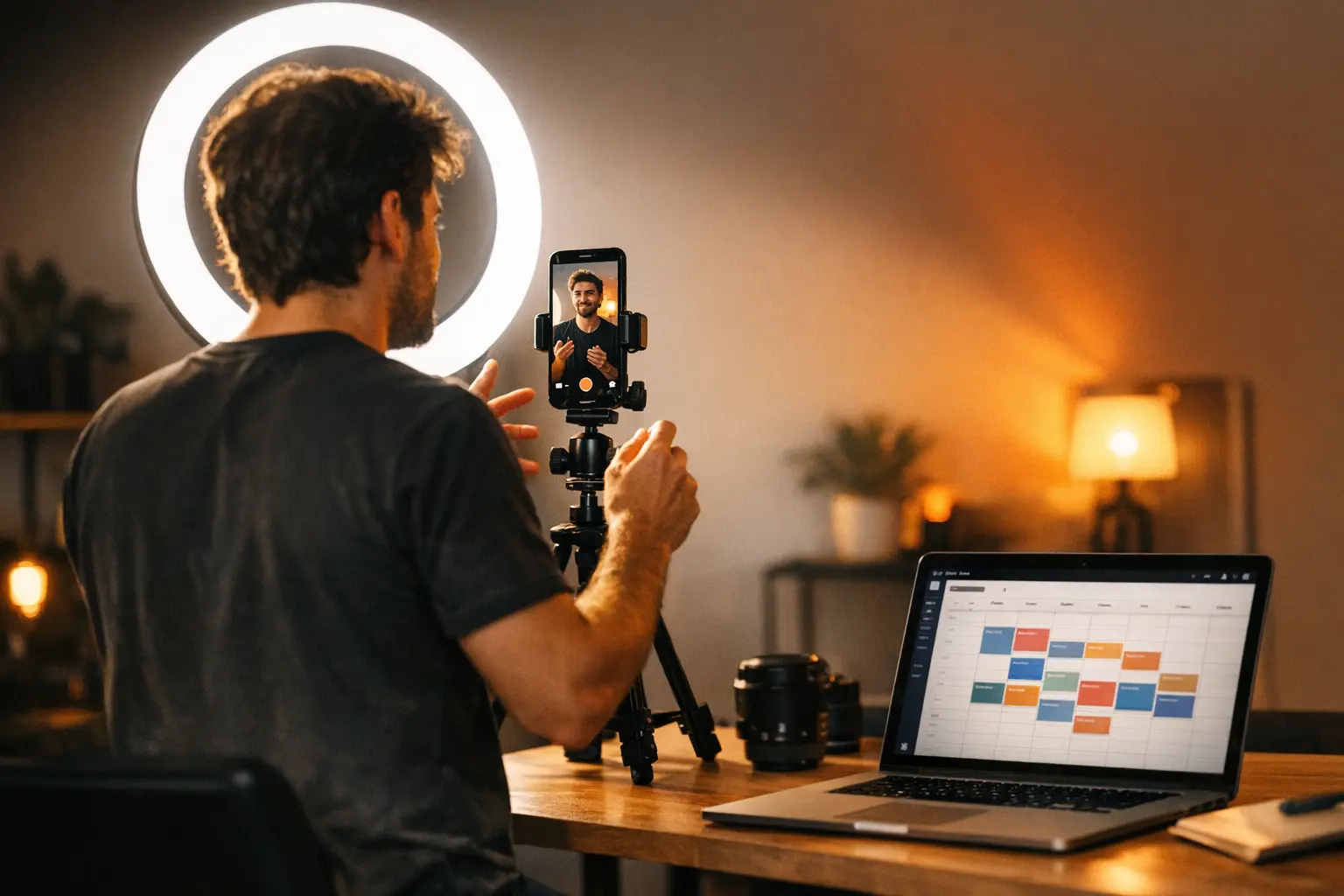
Consistency is the single biggest driver of growth on YouTube Shorts — and consistency is hard to sustain when you are uploading everything manually, on the fly. Knowing how to schedule YouTube Shorts means you can batch-create content when inspiration hits, then let it publish automatically at the right moment, day after day, without being chained to your phone.
Whether you are a solo creator juggling a full-time job or a brand managing multiple channels, the ability to schedule YouTube Shorts ahead of time is one of the highest-leverage habits you can build. This guide walks you through every option available in 2026: how to schedule YouTube Shorts in YouTube Studio on desktop, how to schedule YouTube Shorts on mobile, and how to use third-party scheduling tools — so you can pick the workflow that fits your situation.
Can You Schedule YouTube Shorts?
Yes, you can schedule YouTube Shorts natively inside YouTube Studio, and you can also schedule YouTube Shorts through select third-party tools that have access to the YouTube Data API.
YouTube added the ability to schedule YouTube Shorts through the same upload flow used for long-form videos. When you upload a vertical video that is 60 seconds or shorter (or up to 3 minutes for newer Shorts eligibility), YouTube automatically categorises it as a Short. The option to schedule YouTube Shorts appears during the visibility step of the upload process, before you hit publish.
You can schedule YouTube Shorts up to 12 months in advance on desktop. The feature is also available in the YouTube mobile app, making it practical regardless of where you do most of your editing and uploading.
One thing worth clarifying: scheduling a Short does not change how it is distributed. YouTube treats a scheduled Short exactly the same as one published manually. The algorithm looks at early engagement signals — views, likes, comments, shares — in the first hours after a video goes live. Scheduling at a time when your audience is active can give those early signals a meaningful boost. For guidance on optimal timing, see Best Time to Post on YouTube in 2026.
How to Schedule YouTube Shorts in YouTube Studio
Desktop is the most full-featured environment when you want to schedule YouTube Shorts, and the steps are straightforward.
Step 1 — Open YouTube Studio
Go to studio.youtube.com and sign in to your channel. In the top-right corner, click the Create button (the camera icon with a plus sign) and select Upload videos.
Step 2 — Upload your Short
Drag your vertical video file into the upload window, or click Select files to browse for it. YouTube will begin processing the file while you fill in the details.
Step 3 — Add title, description, and tags
Write a clear, keyword-informed title and description. For a Short, these fields matter for search discovery — treat them the same way you would for a long-form upload. Add relevant tags and a thumbnail if you have one prepared.
Step 4 — Set audience and monetisation settings
On the Details screen, confirm whether the video is made for kids and handle any age-restriction or monetisation settings relevant to your channel.
Step 5 — Choose ‘Schedule’ in the Visibility step
On the third and final step — Visibility — you will see three options: Save as draft, Schedule, and Publish. Select Schedule.
A date and time picker will appear. Choose the date you want the Short to go live and set the time in your local timezone. YouTube Studio will confirm the scheduled publish time at the top of the panel.
Step 6 — Click ‘Schedule’
Once the time is set, click the blue Schedule button. Your Short now appears in the Content section of YouTube Studio with a clock icon and the scheduled publish time next to it. You can edit or reschedule YouTube Shorts any time before the publish time arrives.
Editing a scheduled Short
In YouTube Studio, go to Content → Uploads and look for videos with the scheduled status. Click the pencil icon to open the editor, change the details or the publish time, and save. You can also delete a scheduled Short from this view if you need to pull it entirely.
How to Schedule YouTube Shorts on Mobile
The YouTube mobile app added native scheduling for Shorts, which is useful when you capture and edit content directly on your phone. Here is how to schedule YouTube Shorts from a mobile device.
Step 1 — Open the YouTube app
Launch YouTube on iOS or Android and make sure you are signed in to the channel you want to publish from.
Step 2 — Tap the ‘+’ button
The large + (Create) button is centred along the bottom navigation bar. Tap it and select Create a Short or Upload a video, depending on your content. If your video is already recorded and edited, choose Upload a video.
Step 3 — Select and trim your video
Pick the vertical video file from your camera roll. Use the trim controls if you need to adjust the length.
Step 4 — Add details
Add a title, description, and any sounds or effects if you are using the in-app editor. Tap Next when you are done.
Step 5 — Change visibility to ‘Schedule’
On the sharing screen, tap the Visibility field. It defaults to Public. Tap it and select Schedule. A date and time picker will appear below. Set the publish date and time.
Step 6 — Tap ‘Upload’
With the schedule set, tap the Upload or Share button (label varies slightly by app version). The Short is queued and will publish automatically at the chosen time.
You can check scheduled Shorts in the YouTube Studio app under Library → Your videos — look for the clock icon next to any video with a scheduled status.
Scheduling YouTube Shorts vs TikTok vs Instagram Reels
All three major short-form platforms now support some form of native scheduling, but the experience and limitations differ.
| Platform | Native Scheduling | Advance Window | Mobile App Scheduling |
|---|---|---|---|
| YouTube Shorts | Yes (YouTube Studio) | Up to 12 months | Yes |
| TikTok | Yes (TikTok Studio / desktop) | Up to 10 days | Limited |
| Instagram Reels | Yes (Meta Business Suite) | Up to 75 days | Yes (via Creator Studio app) |
YouTube gives you the longest scheduling window by a significant margin — 12 months versus TikTok’s 10-day cap — which makes it easier to plan seasonal content or campaign timelines well in advance.
TikTok’s native scheduler is functional but restrictive. If you want to schedule TikTok content further out, a third-party tool is necessary. See How to Schedule TikTok Posts: Complete Guide for 2026 for a full walkthrough.
Instagram Reels scheduling through Meta Business Suite supports up to 75 days and works reasonably well, though the mobile experience can be inconsistent depending on the account type.
If you are publishing the same short-form video across YouTube, TikTok, and Instagram simultaneously, managing three separate native schedulers becomes inefficient quickly. That is where third-party tools — covered below — earn their place in a creator’s workflow. If you want to schedule YouTube Shorts alongside content for other platforms from a single dashboard, a dedicated tool is worth the investment.
Third-Party Tools for Scheduling YouTube Shorts
Native YouTube Studio scheduling covers the basics well, but there are scenarios where a third-party tool adds meaningful value:
- You publish the same content across multiple platforms and want a single calendar view.
- You want to bulk-upload and schedule a week or month of content at once.
- Your team has multiple people managing content, and you need role-based access.
- You want analytics aggregated across platforms in one dashboard.
BrandGhost (brandghost.ai) is one option built specifically for short-form video creators. It supports scheduling YouTube Shorts alongside TikTok and Instagram Reels from a single interface. You can upload a video once and push it to multiple platforms on a defined schedule — useful for creators who repurpose content across channels. For context on how that workflow looks in practice, see Cross-Post Reels to YouTube Shorts.
Other third-party tools with YouTube Shorts scheduling support include Later, Hootsuite, and Buffer. Features and pricing differ, so evaluate based on how many platforms you manage and how much of the workflow you need to automate.
When choosing a third-party tool, confirm it uses the official YouTube Data API and that your channel meets any subscriber or account standing requirements YouTube enforces for third-party API access.
Tips for Building a YouTube Shorts Publishing Schedule
Knowing how to schedule YouTube Shorts is half the equation. Building a sustainable publishing rhythm is the other half. Here are the habits that separate channels that grow steadily from those that stall.
Decide on a posting frequency you can maintain
Three to five Shorts per week is a commonly cited baseline for channels trying to grow, but the right number depends entirely on your capacity to produce quality content. Publishing two polished Shorts per week beats publishing five rushed ones. Start conservative and scale up when batch production becomes routine.
Batch record and edit in sessions
The biggest efficiency gain from the ability to schedule YouTube Shorts comes from separating creation from publishing. Block two or three hours once or twice a week for filming and editing. Then schedule YouTube Shorts you have produced for the days ahead. This approach removes the daily pressure of having to post something today.
Align your schedule with audience activity
Check the Audience tab in YouTube Studio analytics. It shows a heatmap of when your subscribers are most active by hour and day of week. Schedule your Shorts to publish 30–60 minutes before those peak windows so the video is indexed and surfaced as activity climbs.
Use a content calendar
A simple spreadsheet or a tool like BrandGhost’s content calendar view helps you see your entire publishing schedule at a glance. You can spot gaps, avoid clustering too many uploads on one day, and plan themed content around dates or campaigns.
Keep a backlog of scheduled content
Aim to stay at least two weeks ahead on scheduled content. A backlog acts as a buffer against weeks when life gets in the way. If you miss a recording session, your channel keeps publishing on schedule while you catch up.
For a broader look at YouTube scheduling strategy — including how Shorts fit into a long-form content mix — see YouTube Scheduling: The Complete Guide for Creators 2026.
Common Mistakes When Scheduling YouTube Shorts
Even with the technical steps handled, a few recurring mistakes can undermine an otherwise solid approach to how you schedule YouTube Shorts.
Scheduling without a finished thumbnail
YouTube auto-generates a thumbnail from a frame of the video if you do not upload a custom one. For Shorts, the thumbnail matters less than for long-form videos because most discovery happens through the Shorts feed rather than search or browse — but for search-discovered Shorts, a clear custom thumbnail improves click-through. If you plan to use a custom thumbnail, have it ready before you schedule the upload rather than planning to add it later.
Setting the wrong timezone
YouTube Studio schedules based on the timezone set in your Google account settings. If you are in a different timezone than your account default — for example, after travelling — double-check that the time you enter corresponds to the local time you actually want. A 9 AM post accidentally scheduled for 9 AM in a different timezone can miss your peak audience window entirely.
Scheduling too many Shorts at once with no gap
Publishing multiple Shorts within a short window can split your own audience and dilute the engagement signal on each video. Leave at least several hours between Shorts published on the same day, and generally avoid publishing more than one Short per day unless you are running a deliberate campaign with a defined end date.
Ignoring the content once it is scheduled
Scheduling is not a set-and-forget system. When a Short goes live, check the comments and engage quickly. Early engagement signals matter to the algorithm, and replies from the creator in the first 30–60 minutes can meaningfully lift a Short’s distribution.
Deleting and re-uploading to fix a mistake
If you notice an error in a scheduled Short — wrong title, wrong hashtag, small visual glitch — resist the impulse to delete and re-upload. Edit the metadata directly in YouTube Studio. If the video content itself needs to change, weigh whether the issue is significant enough to warrant a re-upload, since deleting a video removes any views or engagement it has already accumulated.
Start Scheduling Your YouTube Shorts
The process to schedule YouTube Shorts is not complicated, but it rewards consistency. The channels that grow steadily on Shorts are the ones publishing reliably, week after week — not the ones with the highest production value or the most followers at the start.
Use YouTube Studio’s native scheduler to get started today: upload your next Short, pick a time that aligns with when your audience is active, and let it go live automatically. When you are ready to schedule YouTube Shorts alongside your TikTok and Reels calendar in one place, tools like BrandGhost make that cross-platform workflow significantly simpler.
The best time to build your scheduling habit was the first day you started your channel. The second best time is right now.
Frequently Asked Questions
Can you schedule YouTube Shorts in advance?
Yes. YouTube Studio lets you schedule Shorts up to 12 months ahead on desktop. Upload your Short, choose 'Schedule' instead of 'Publish', and set your date and time.
How do you schedule YouTube Shorts on mobile?
Open the YouTube app, tap the '+' button, select your Short, and during upload choose 'Schedule' from the visibility options. Set your desired publish date and time, then tap 'Schedule'.
Can you schedule YouTube Shorts with a third-party tool?
Yes. Tools like BrandGhost support scheduling YouTube Shorts alongside content for other platforms such as TikTok and Instagram Reels, making it easier to manage a cross-platform short-form video calendar.
Does scheduling YouTube Shorts affect performance?
Scheduling itself does not hurt reach or performance. Publishing consistently at times when your audience is most active can improve early engagement signals, which the YouTube algorithm uses to determine broader distribution.
What is the best time to schedule YouTube Shorts?
According to YouTube's own guidance, posting when your subscribers are active gives content the best initial push. Check your YouTube Studio analytics under 'Audience' to see when your viewers are online.